Merchant
Use the 'Merchant' Tab to view and manage merchants of your products.
Locate Merchants
To view a list of all merchants, click on 'List Merchants' in the left menu. You can also run a search for a specific merchant by clicking on 'Find Merchant', and running a search in the same method as running a search for a specific member. Since loyalty programs tend to have only a handful of merchants, using the 'List Merchants' function is most likely the more efficient option.
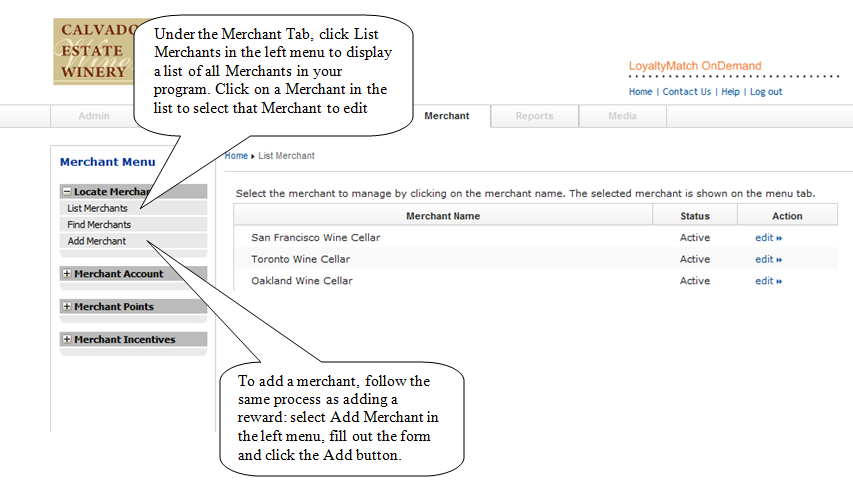
Merchant Account
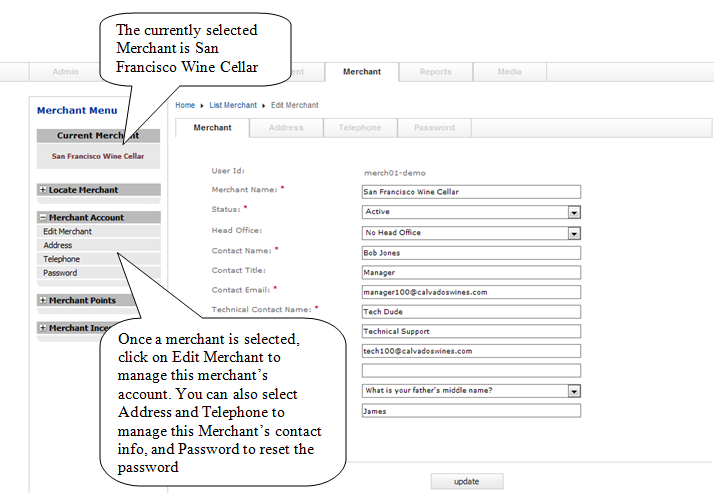
Once you have selected a merchant, you can view and manage the account for that merchant. Under the 'Merchant Account' drop down in the left menu, select 'Edit Merchant'. You can then manage general account information for the selected merchant, or click on the 'Address', 'Telephone' or 'Password' tabs to edit the merchant's address, contact information or reset their password respectively.
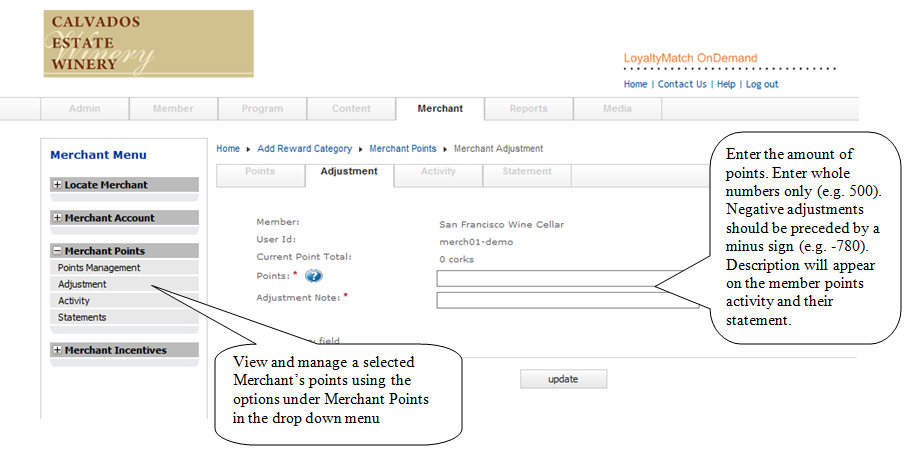
Merchant Points
You can also manage the points for a selected merchant. After selecting a merchant, expand the 'Merchant Points' drop down and click on 'Adjustment'. Here you can add or remove points from a merchant account. You can also view how many points a merchant currently has by clicking on 'Points Management'. Points transactions are displayed under the 'Activity' tab, and the merchant statement is under the 'Statement' tab.
Commerce Upload
The Commerce Upload section (found under the Merchant Tab) allows you to bulk-upload point transactions for members from external commerce files. Before uploading any file, you must first add your merchant(s) and assign a point conversion (points per dollar). We recommend testing every file before performing a live upload. After an upload completes, review the summary and detail files for errors and notices.
Point Conversions
Point conversions define how many points a member earns per dollar spent at a merchant. Use the following options in the Commerce Upload menu to manage conversions:
- List Point Conversions – View all point conversion rules currently configured for your merchants.
- Add Point Conversion – Create a new points-per-dollar conversion rate for a merchant.
Uploading Commerce Files
The following upload options are available under Commerce Upload. Always use the corresponding Test option first to validate a file before performing a live upload:
- Upload Merchant Commerce File – Upload a standard merchant commerce file to award points to members.
- Test Merchant Commerce File – Validate a merchant commerce file without committing any transactions.
- Upload TicketFly Files – Upload commerce files exported from TicketFly.
- Test TicketFly Files – Validate TicketFly files before uploading.
- Upload Aknaf Files – Upload commerce files from the Aknaf system.
- Test Paycom Salary – Validate a Paycom salaried-employee commerce file.
- Upload Paycom Salary – Upload a Paycom salaried-employee commerce file.
- Test Paycom Hourly – Validate a Paycom hourly-employee commerce file.
- Upload Paycom Hourly – Upload a Paycom hourly-employee commerce file.
- View Previously Uploaded Files – Review the history of previously uploaded commerce files along with their summary and detail results.
File Templates
Members can be identified in a commerce file using either their Member Loyalty Card number or their email address. Download the appropriate template for your file format:
| Template Type | Description | Downloads |
|---|---|---|
| Full Template: MS Excel | All commerce fields in MS Excel format. Green = Mandatory Yellow = Optional Blue = Record Specific |
(LoyaltyCard) Excel Template (Email) Excel Template |
| Full Template: CSV | All commerce fields in comma-separated (CSV) format. | (LoyaltyCard) CSV Template (Email) CSV Template |
| Paycom Upload Template: CSV | Paycom-specific commerce fields in CSV format. | Salary (Email) CSV Template Hourly (Email) CSV Template |
| Basic Sample File | Minimum required fields with commerce and point awarding. Right-click and "Save Target As…", then open with a text editor or Excel. | (LoyaltyCard) Sample (Email) Sample |
File Fields
The following fields are used in the commerce file. Fields marked mandatory must be present in every record. At least one point or purchase amount field (marked special*) is required per record.
| Field | Description | Type | Required |
|---|---|---|---|
MerchantId |
The unique merchant ID that rewarded the points (e.g. 1). Find your merchant ID on the List Merchant Point Conversions page or when editing a merchant. |
number | mandatory |
MemberLoyaltyCard or MemberEmail |
The member's loyalty card number (e.g. 899444002356), or the member's email address. Use one or the other per file. |
number / text | mandatory |
TransactionDate |
The date of the transaction in yyyy-mm-dd format (e.g. 2024-03-15). |
date | mandatory |
TransactionEnglishDescription |
English text displayed on the member's statement. | text | mandatory |
TransactionFrenchDescription |
French text displayed on the member's statement. | text | optional |
TransactionType |
A customer-defined transaction type label. | text | optional |
ReferenceNumber |
A customer-defined reference number. | text | optional |
AccountNumber |
A customer-defined account number. | text | optional |
PurchaseAmount |
The purchase amount (e.g. 34.99). The merchant must have a conversion (points per dollar) configured. Cannot be combined with RegularPoints in the same record. |
number | special* |
RegularPoints |
Regular points awarded for the transaction. Cannot be combined with PurchaseAmount in the same record. |
number | special* |
BonusPoints |
Bonus points awarded. May be included alongside a purchase amount or other points. | number | optional* |
DoublePoints |
Double points awarded. May be included alongside a purchase amount or other points. | number | optional* |
POSRewardPoints |
Point-of-sale bonus points awarded. May be included alongside a purchase amount or other points. | number | optional* |
ProductSpecialPoints |
Product special bonus points awarded. May be included alongside a purchase amount or other points. | number | optional* |
* Each record must include at least one of: PurchaseAmount, RegularPoints, BonusPoints, DoublePoints, POSRewardPoints, or ProductSpecialPoints.
Error Messages
The following errors may appear in the detail file after a test or upload. Fatal errors prevent the entire file from being processed; record errors skip only the affected record.
| Error | Message | Severity |
|---|---|---|
| 611 | The MerchantId header is missing. The file will not be processed. |
Fatal – file not processed |
| 612 | The MemberLoyaltyCard header is missing. The file will not be processed. |
Fatal – file not processed |
| 613 | The TransactionDate header is missing. The file will not be processed. |
Fatal – file not processed |
| 614 | The TransactionEnglishDescription header is missing. The file will not be processed. |
Fatal – file not processed |
| 615 | The PurchaseAmount or points headers are missing. The file will not be processed. |
Fatal – file not processed |
| 710 | There are x columns in this record, but there are y header columns. Column count mismatch. | Record not processed |
| 711 | The merchant ID x is invalid (not a number). | Record not processed |
| 712 | The merchant ID x does not exist in your system. | Record not processed |
| 713 | The loyalty card x does not exist in your system. | Record not processed |
| 714 | The date is in the wrong format. It must be yyyy-mm-dd (e.g. 2011-07-25). |
Record not processed |
| 715 | There are no points or dollar amount awarded to this record. | Record not processed |
| 716 | There are regular points and a dollar amount awarded to this record. You cannot assign both. | Record not processed |
| 717 | There is no conversion (dollar to points) configured for merchant x. A purchase amount requires a points-per-dollar conversion. | Record not processed |
| 718 | The member email does not have a valid loyalty card associated with it. | Record not processed |
| 812 | Database error while finding merchant ID x. Please contact support. | Record not processed |
| 813 | Database error while finding loyalty card x. Please contact support. | Record not processed |
| 817 | Database error while finding the conversion for merchant x. Please contact support. | Record not processed |
| 818 | Database error while finding the member email. Please contact support. | Record not processed |